
Afunana for VS Code
IBM i source, documentation and jobs in one workspace
One self-contained VS Code extension. No additional IBM i connectivity extensions from IBM, Rocket, Broadcom or other vendors are required. Install Afunana, sign in to your Afunana server, and use the collections and IBM i connections available to your account.
Application context beside the code
Open program source in the editor and keep the collection’s documentation available alongside it. Follow dependencies, inspect file definitions and ask questions about the analyzed application.
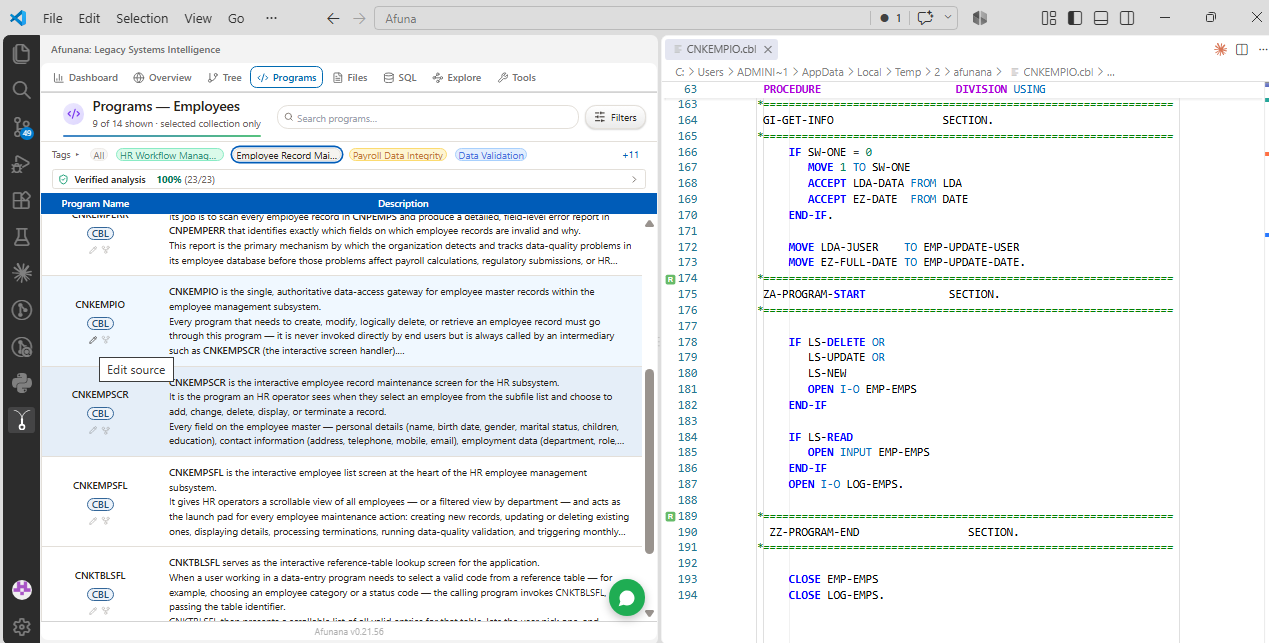
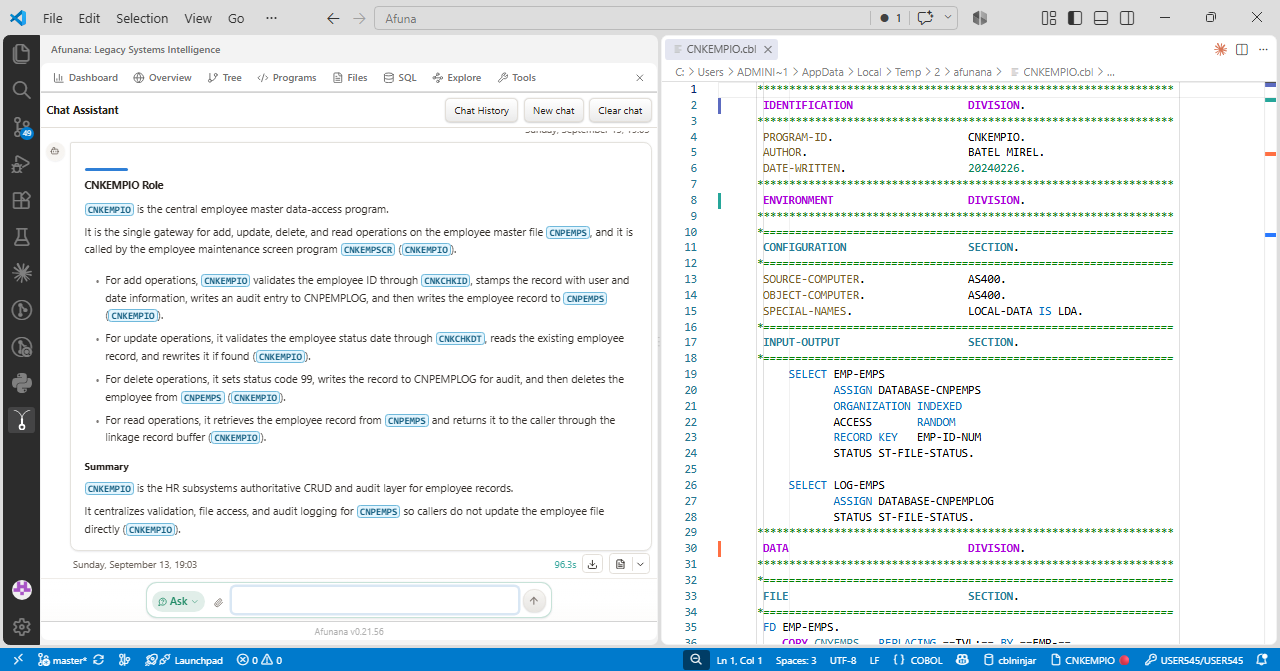
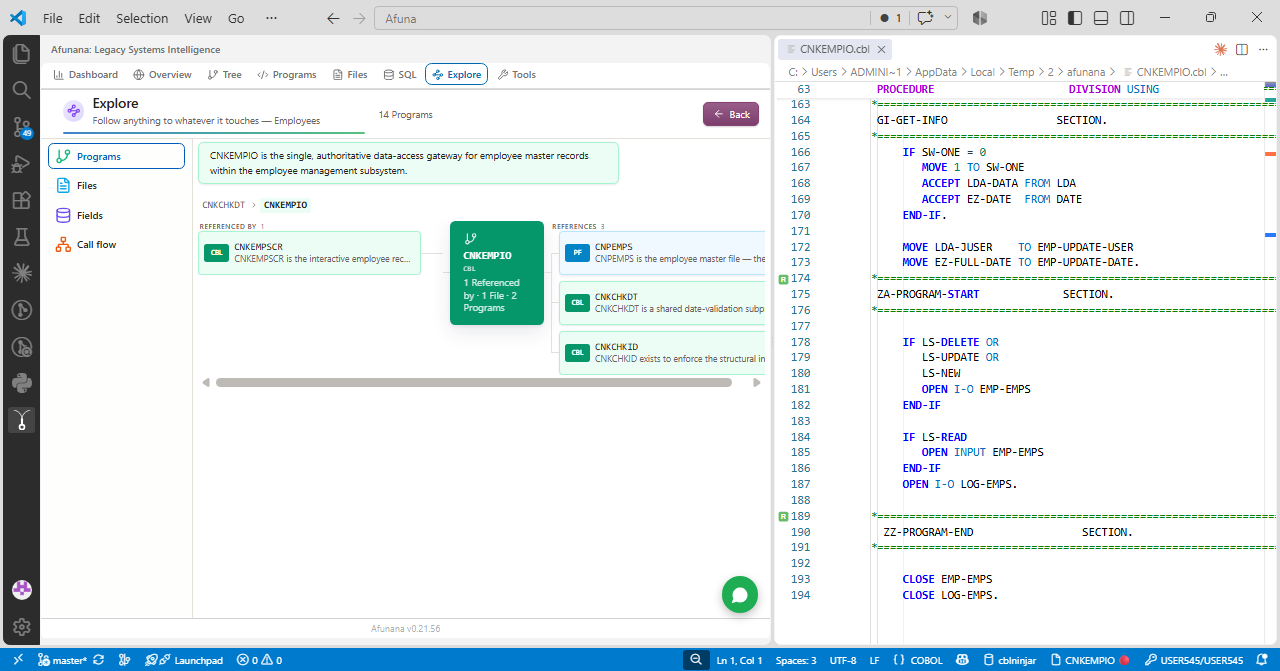
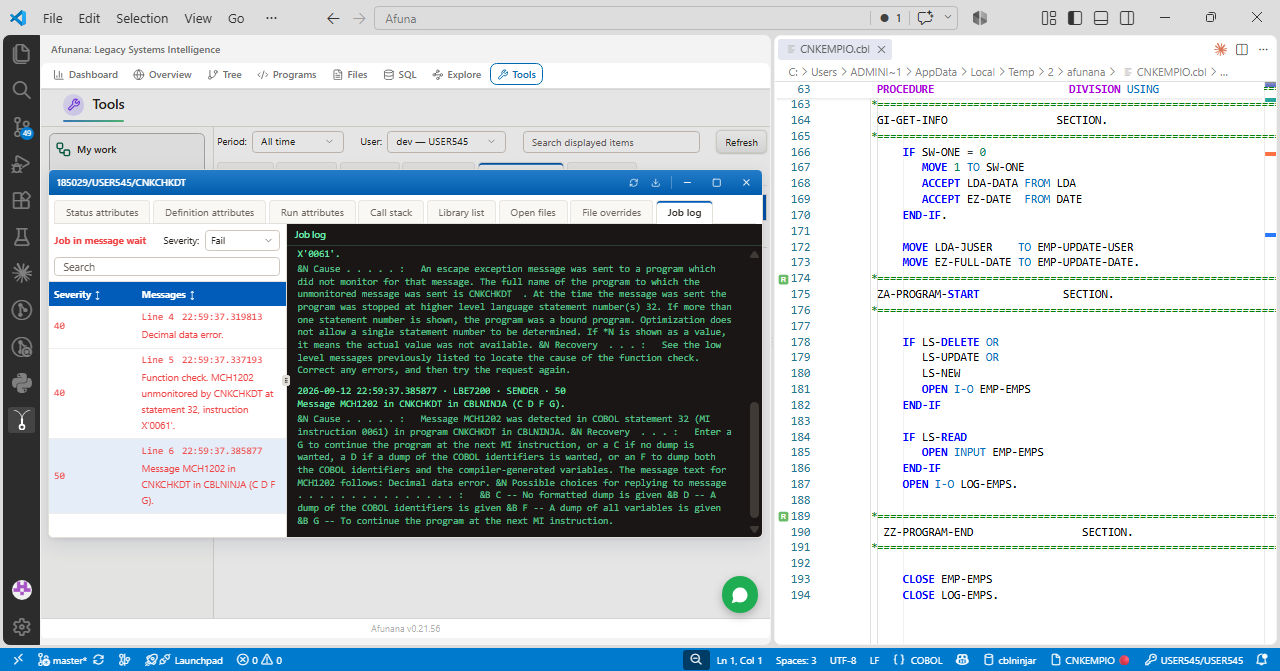
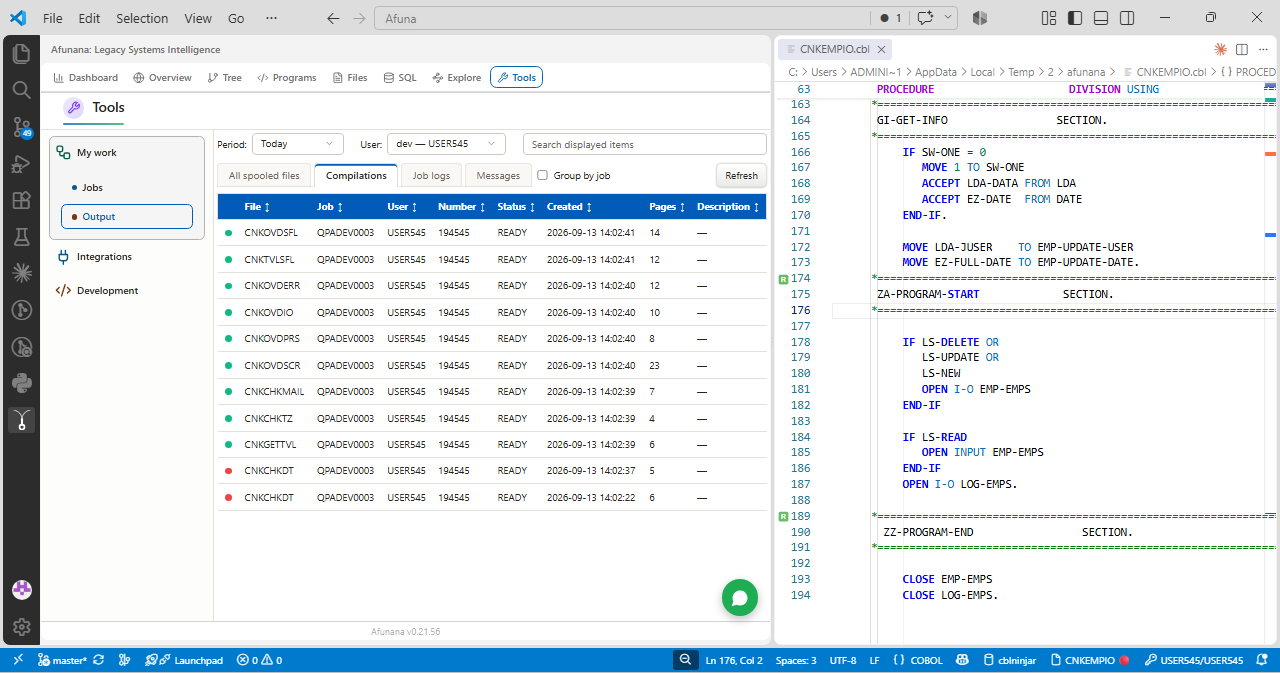
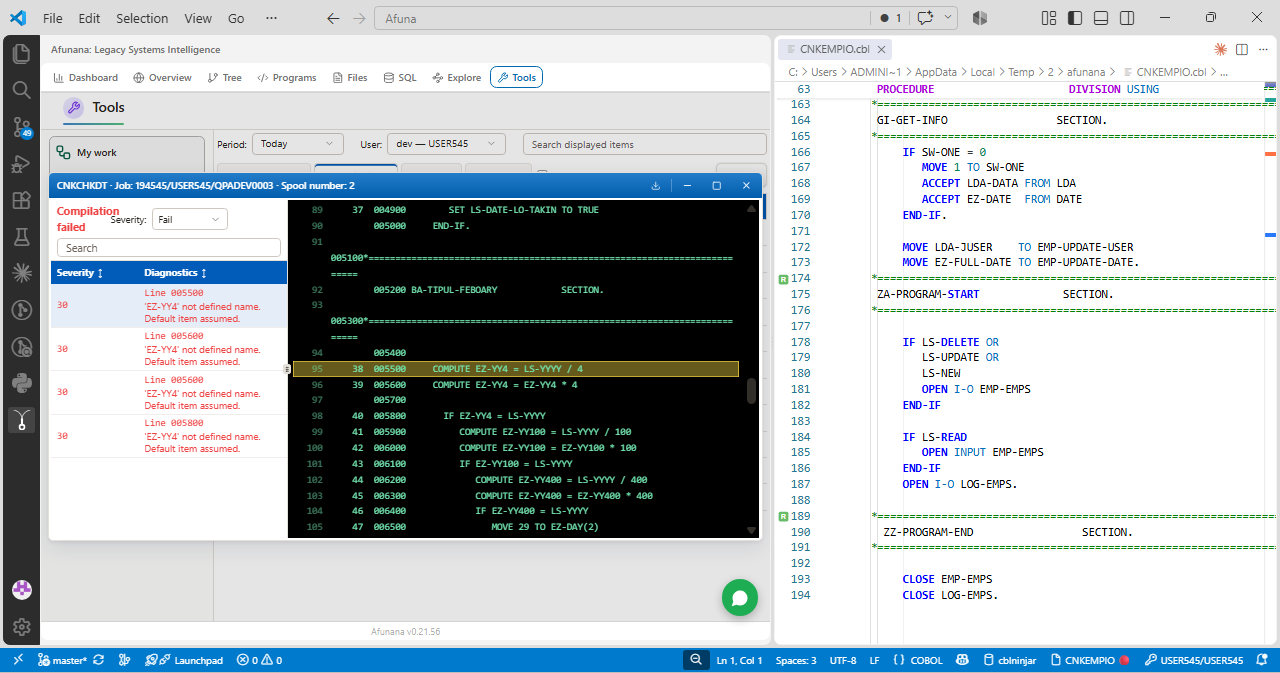
Jobs, logs and compilation results
Use My work to inspect IBM i jobs and spooled output for the identities available to your account. Distinguish message-wait, scheduled and queued jobs. Open job details and available logs, or inspect a compiler listing with severity-filtered diagnostics.
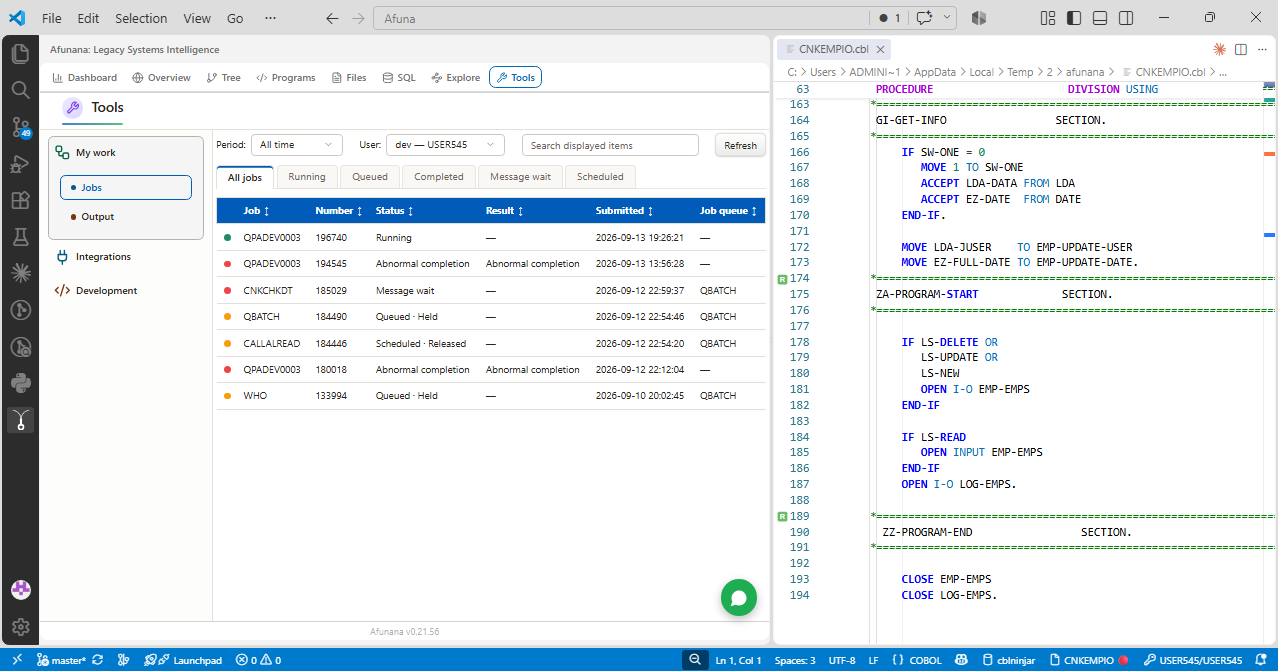
Setup and access
The extension connects to Afunana. Your server supplies the application knowledge and handles the configured IBM i connections. No separate IBM i connectivity extension is needed.
- 01
Install
In VS Code, open Extensions, search for Afunana and install it.
- 02
Sign in
Run Afunana: Login. Enter your Afunana server address and use your organization’s sign-in method.
- 03
Select a collection
Choose from the collections available to your account. The extension reads their existing analysis.
- 04
Check IBM i access
Source editing, jobs and table data require the relevant server connection, IBM i identity and permissions.
Requirements: VS Code, an accessible Afunana server and an authorized Afunana account. The extension does not bypass IBM i authority. Reading documentation does not require enabling source write-back.
Evaluate with your application
Agree a collection and a small set of tasks: finding a rule, tracing a dependency, reviewing a job log or investigating a compiler diagnostic. Begin with read-only access if that is the required scope.